
Pullfrog can route LLM calls through your Google Cloud project using Vertex AI instead of going to the model vendor directly. This is useful when your team already buys through Google Cloud, has Vertex model-access approvals, or wants Google Cloud audit and billing controls around inference.Documentation Index
Fetch the complete documentation index at: https://docs.pullfrog.com/llms.txt
Use this file to discover all available pages before exploring further.
Vertex AI support is BYOK only. Inference is billed by Google Cloud to your account; Pullfrog never proxies Vertex traffic.
Setup
Four things, in order: pick the model in the dropdown, add your service-account JSON as a secret, put project/location/model ID in your workflow, and enable the model in Model Garden.1. Select Google Vertex AI in the model dropdown
Inpullfrog.com/console/<account>/<repo>, open the model dropdown and pick Google Vertex AI. The console will then show the required env vars.
Unlike normal catalog entries, the Vertex entry doesn’t have per-model variants in the dropdown. The actual model — Claude Opus 4.1, Gemini 2.5 Pro, or a partner model — is supplied separately via VERTEX_MODEL_ID (see step 3). Pullfrog never resolves or upgrades that value.
2. Store your service-account JSON as a secret
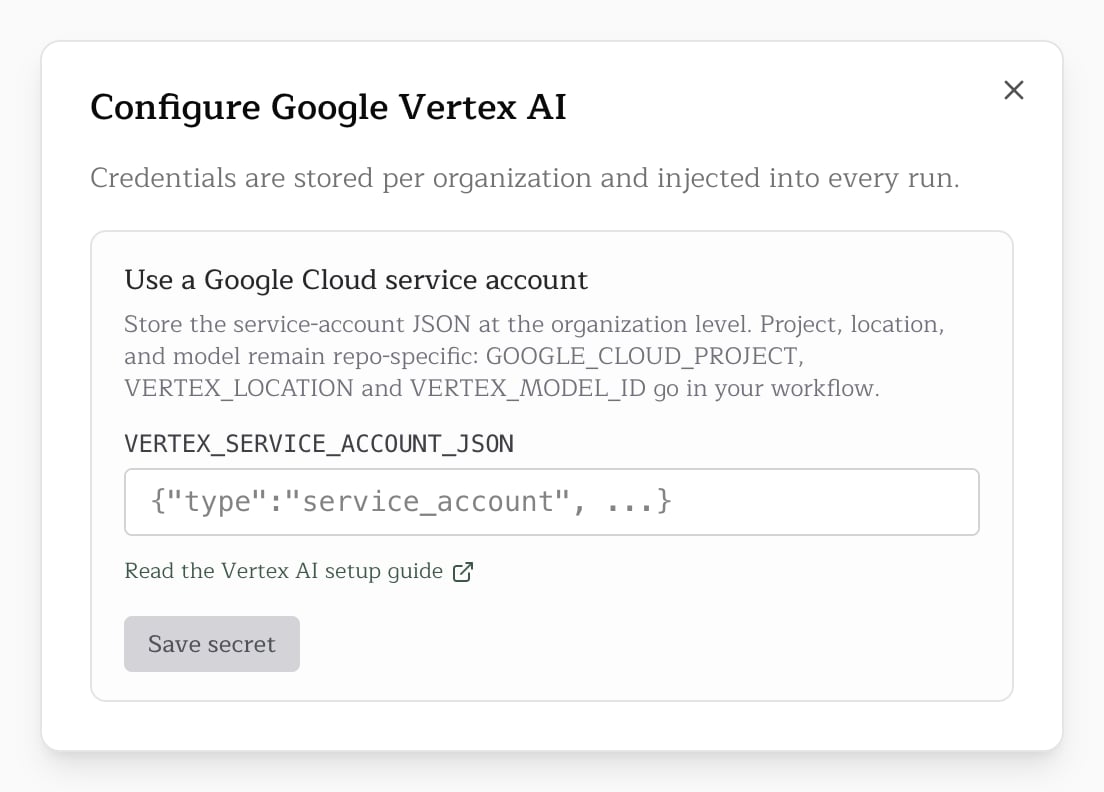
Create a Google Cloud service account withroles/aiplatform.user, download a JSON key, and store the entire JSON blob as a single secret named VERTEX_SERVICE_ACCOUNT_JSON.
You can store it as either a Pullfrog secret or a GitHub Actions secret. Pullfrog secrets are auto-injected into every run with no workflow changes; GitHub secrets keep the value in your existing org-wide secret tooling but require an env: mapping in pullfrog.yml.
3. Hardcode project, location, and model ID in pullfrog.yml
These values are not sensitive. Put them directly in your workflow’s env: block:
VERTEX_SERVICE_ACCOUNT_JSON line — Pullfrog auto-injects it.)
GOOGLE_CLOUD_PROJECT can be omitted when VERTEX_SERVICE_ACCOUNT_JSON contains a project_id; Pullfrog will default it from the JSON. Keeping it explicit in pullfrog.yml is usually clearer.
4. Enable the model in Model Garden
Enable the Vertex AI API (aiplatform.googleapis.com) for your Google Cloud project, then enable any gated models in Model Garden. Prefer global unless your compliance or data residency requirements need a specific regional endpoint.
Picking a model ID
VERTEX_MODEL_ID should be the exact Vertex AI model ID you want to run:
- a Claude model ID from Model Garden, for example the latest enabled Opus, Sonnet, or Haiku ID
gemini-2.5-pro— Gemini 2.5 Pro- other Gemini and partner model IDs accepted by Vertex AI
VERTEX_MODEL_ID directly and commit. Pullfrog never resolves or upgrades the value.
How routing works
Pullfrog detects Anthropic Vertex IDs with an anchoredclaude- prefix check:
- Claude IDs (for example
claude-opus-4-1@20250805) run through the Claude Code Vertex AI integration. Pullfrog setsCLAUDE_CODE_USE_VERTEX=1automatically, and aliasesGOOGLE_CLOUD_PROJECT/VERTEX_LOCATIONinto Claude Code’s expected env var names. - Everything else (Gemini and partner models) runs through OpenCode’s
google-vertexprovider. Pullfrog prepends thegoogle-vertex/prefix automatically.
Troubleshooting
“VERTEX_MODEL_ID env var is required when the model is set to vertex/byok” You picked Google Vertex AI as the model but didn’t setVERTEX_MODEL_ID in your workflow’s env: block. Add it (see step 3 above).
“Google Vertex AI model selected but required configuration is missing”
One or more required values isn’t set. The error message lists exactly what’s missing: VERTEX_SERVICE_ACCOUNT_JSON, GOOGLE_CLOUD_PROJECT (unless derivable from the JSON), VERTEX_LOCATION, or VERTEX_MODEL_ID.
Run starts but the LLM call returns a Google authentication error
Make sure VERTEX_SERVICE_ACCOUNT_JSON is the whole JSON object string, not a path to a local file. Pullfrog writes it to a harness-owned credentials file and sets GOOGLE_APPLICATION_CREDENTIALS internally for the agent process.
Run starts but the LLM call returns a permission or model-access error
Make sure the service account has roles/aiplatform.user, the Vertex AI API is enabled, and the model has been enabled in Model Garden for the selected region.