

.github/workflows/pullfrog.yml workflow. The console sets up both.
1
Sign in to the console
Sign in to the Pullfrog console with your GitHub account.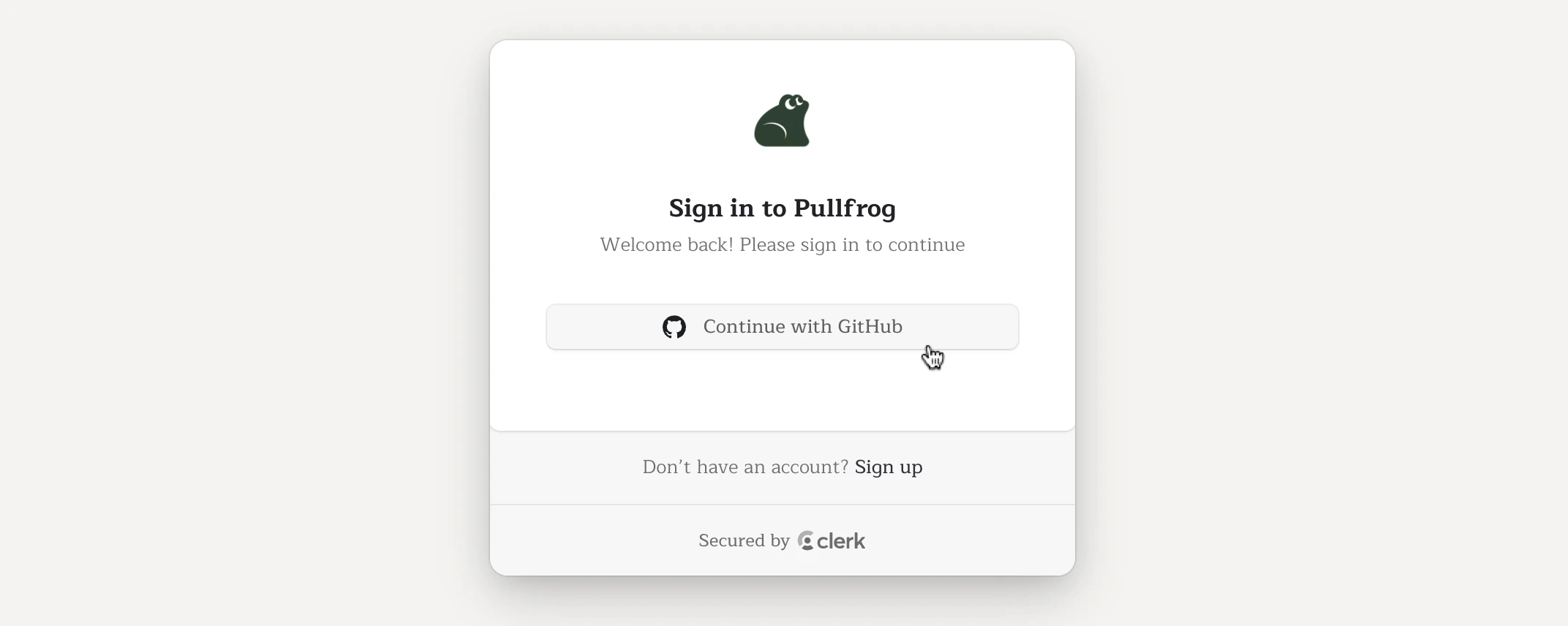
2
Install the GitHub App
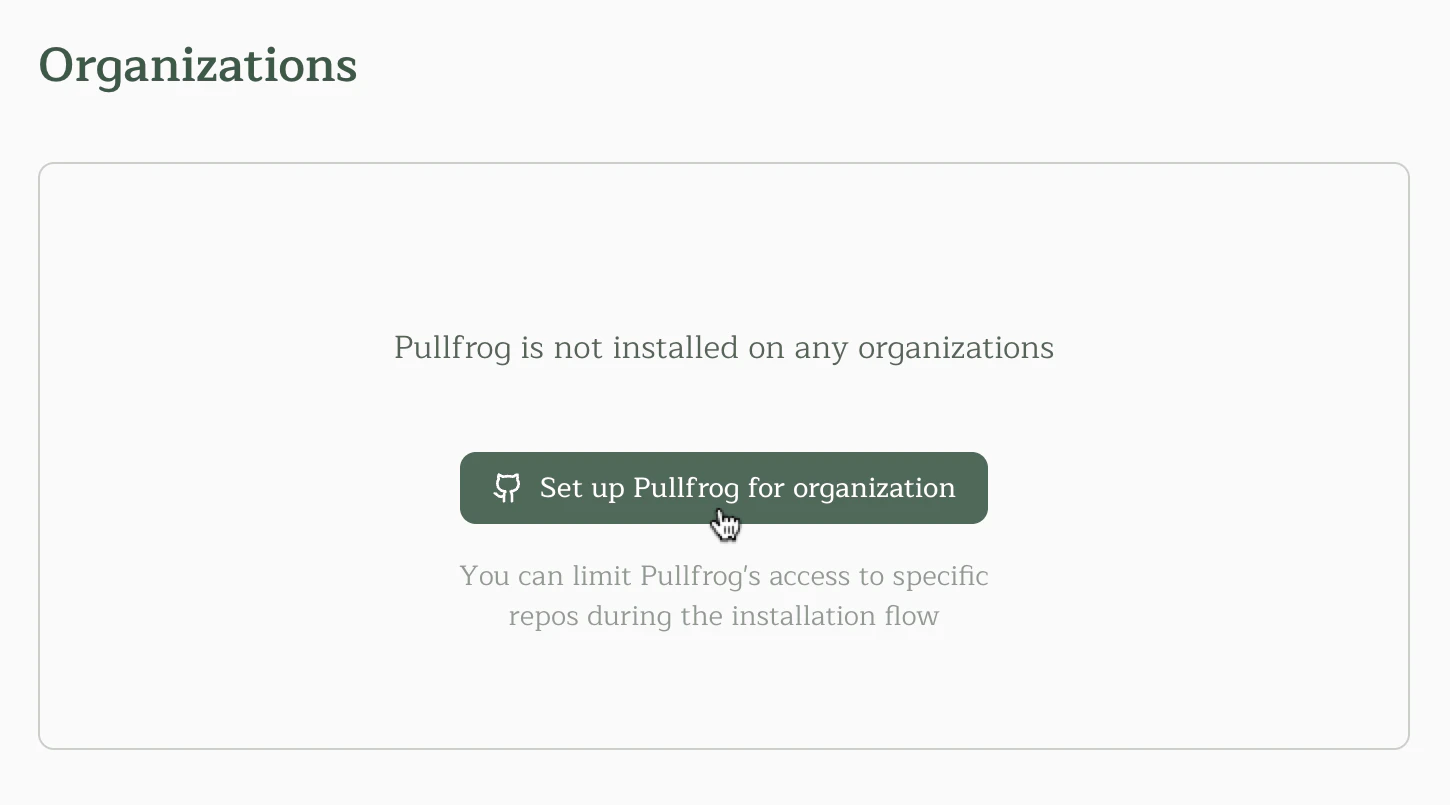
Install the Pullfrog GitHub App on your personal account or on an organization. You can give it access to every repository or only the ones you pick.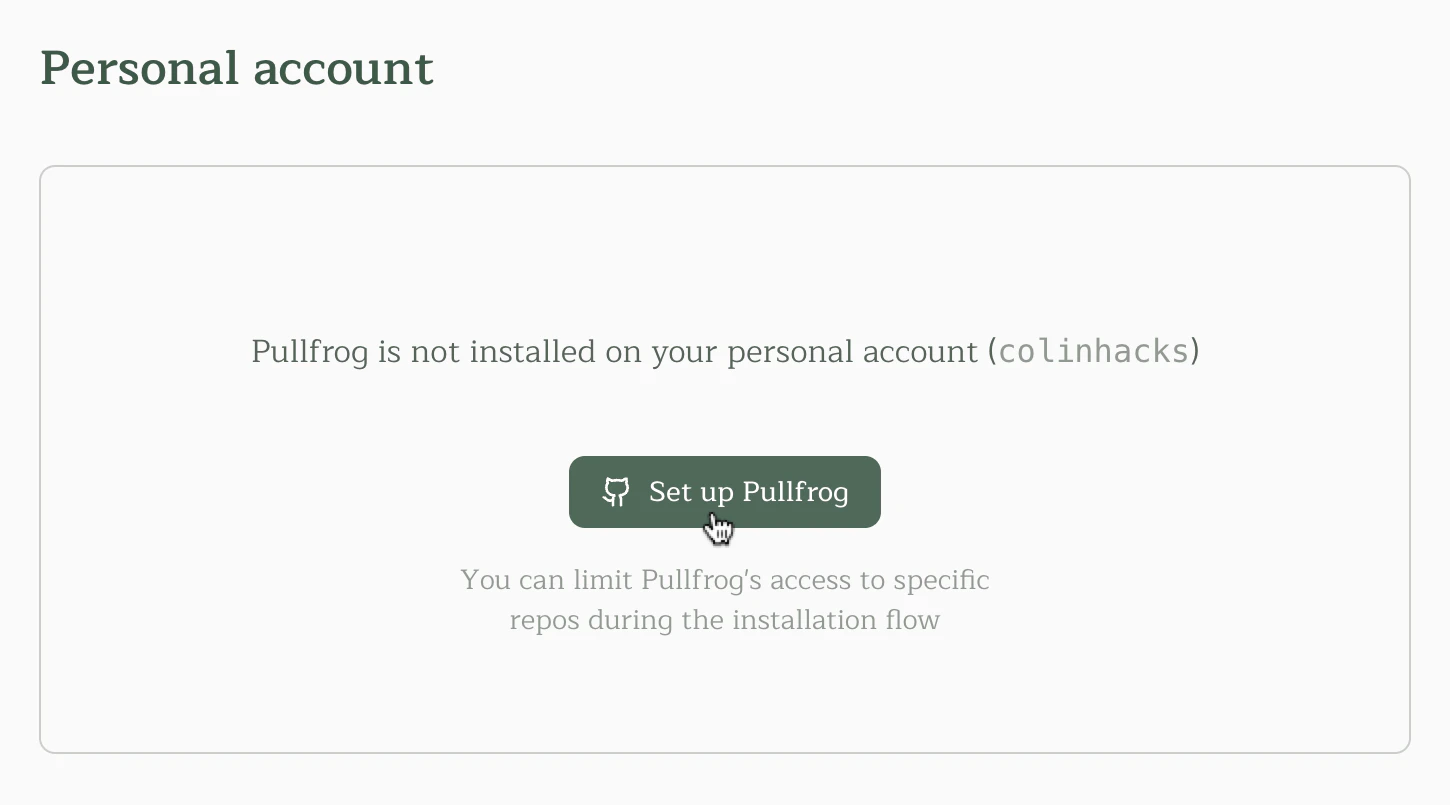
3
Choose how to pay for models
The console asks for a billing mode. On an organization, an org owner makes this choice.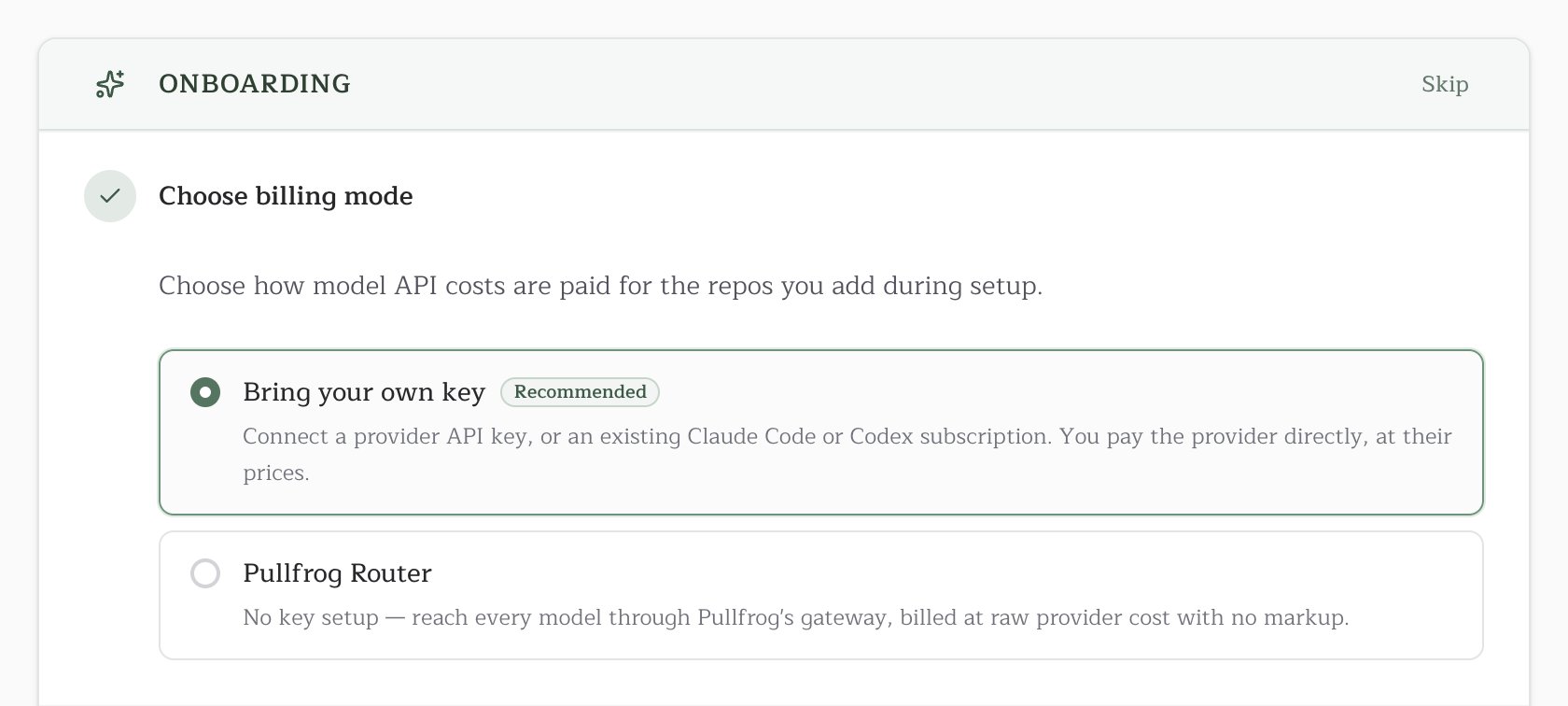
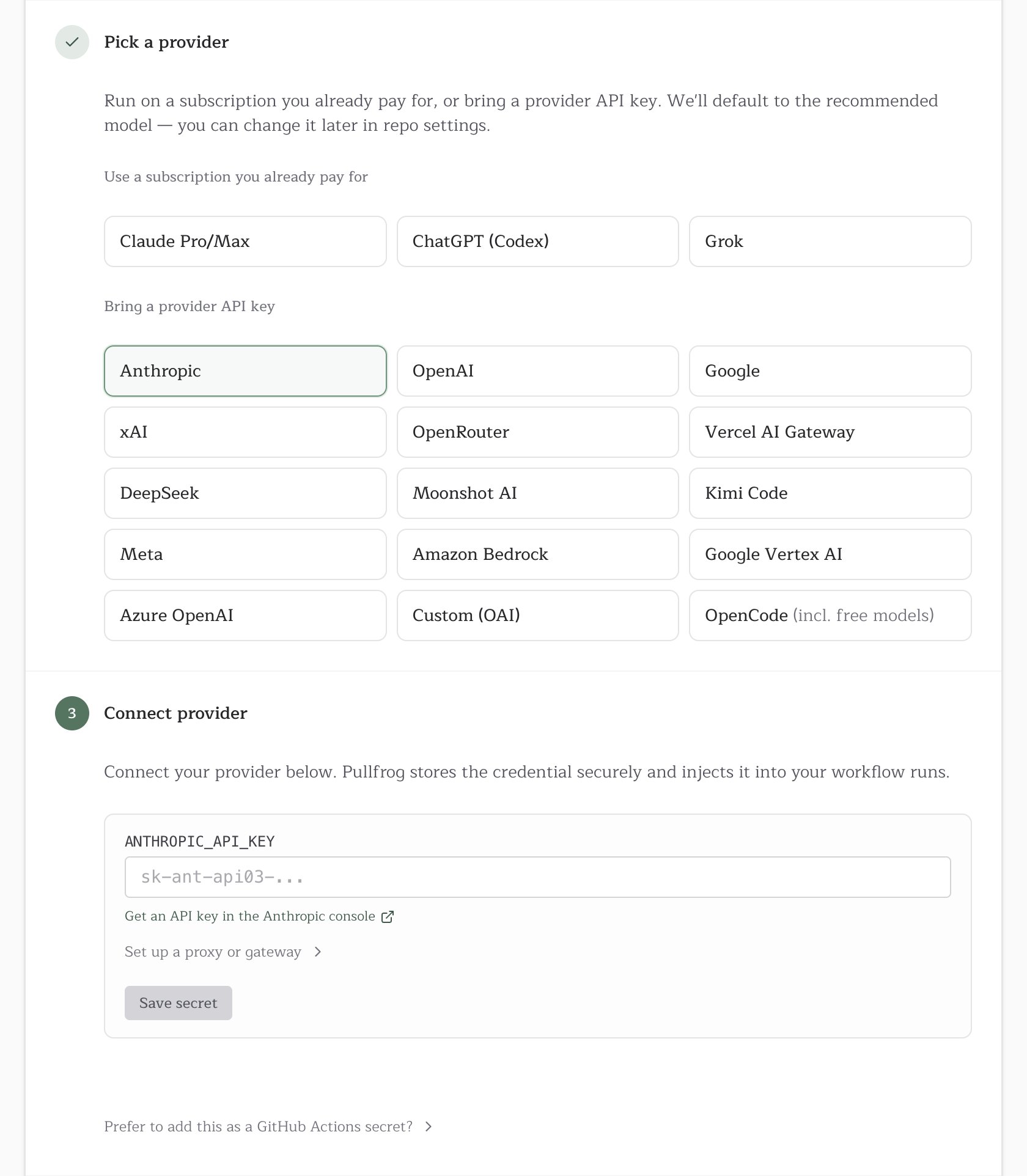
- Bring your own key: a provider API key or an existing subscription, billed by your provider. The console then asks for the provider, its credentials, and a model.
- Pullfrog Router: every model through Pullfrog’s gateway, paid from a balance at provider cost with no markup. By default, Pullfrog picks the model for each run.
4
Add the workflow
Pick the repositories to set up. The console commits 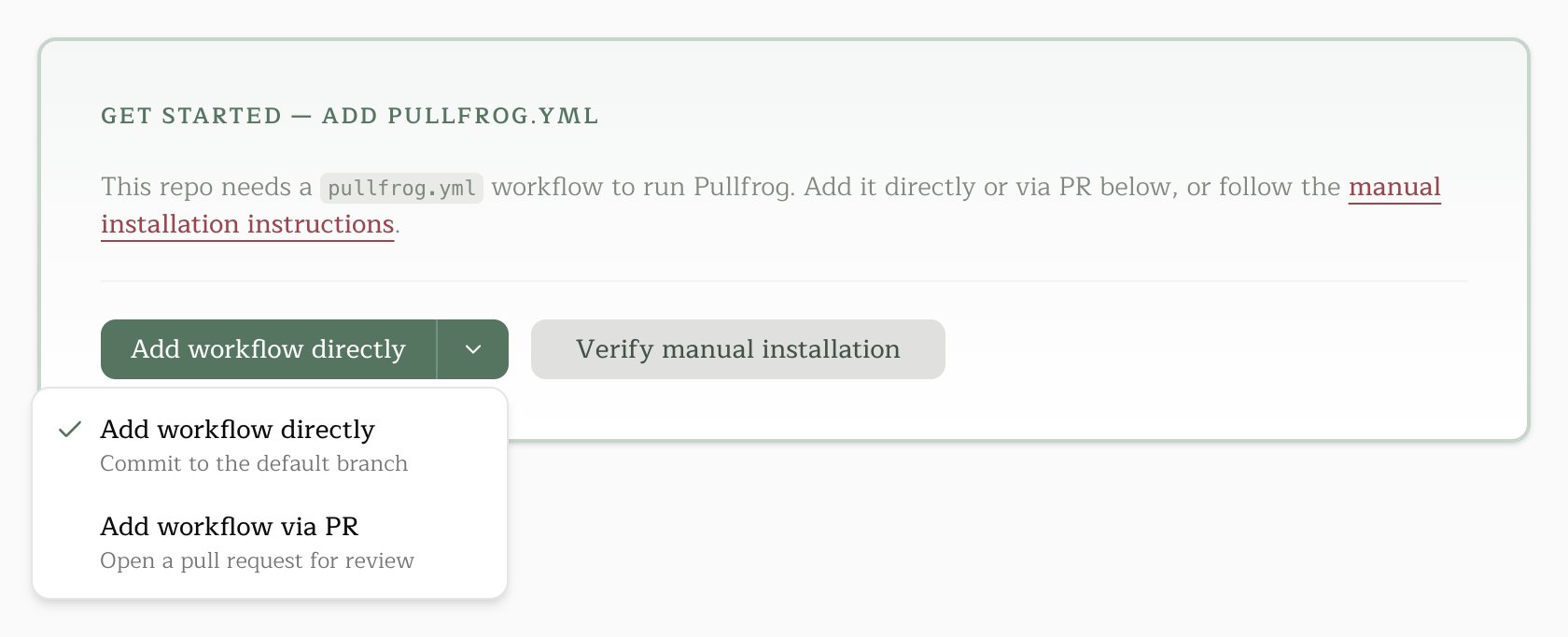
.github/workflows/pullfrog.yml to each repository’s default branch, or opens a PR when branch protection blocks the commit.To set up a repository later, open it in the console and click Add workflow directly or Add workflow via PR.5
Send a test prompt
Open the repository in the console and type a prompt, such as “Summarize what this repository does.” Press the send button, or 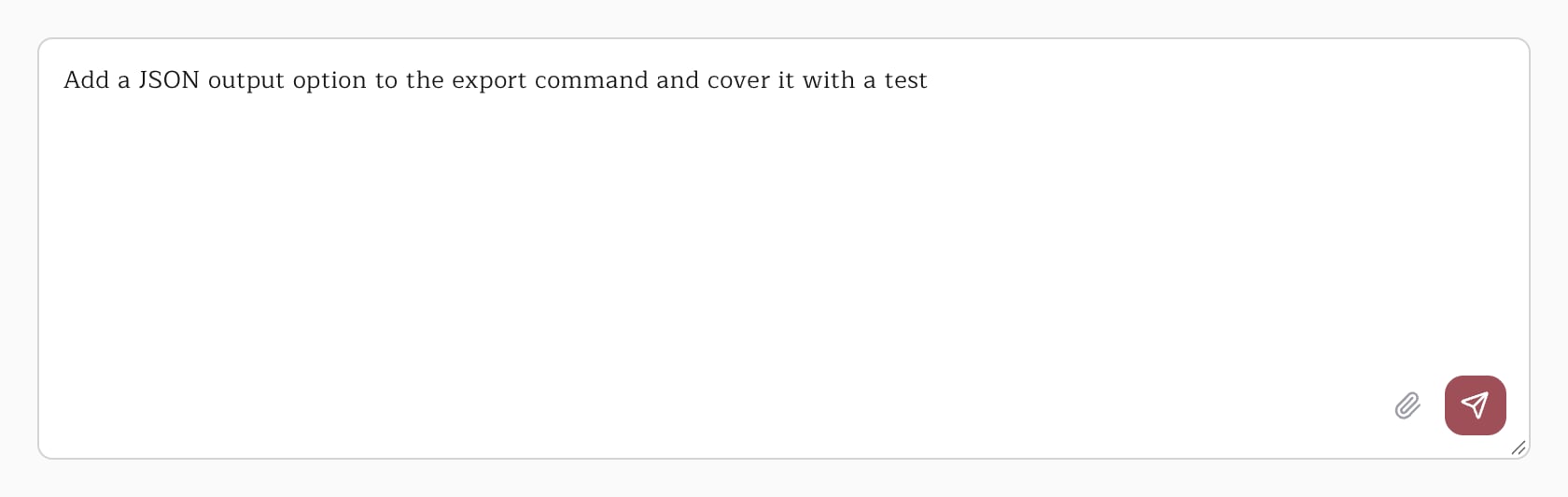
Cmd+Enter (Ctrl+Enter on Windows and Linux). Pullfrog dispatches a GitHub Actions run and opens its logs in a new tab.Manual workflow setup
To add the workflow yourself, create.github/workflows/pullfrog.yml (or pullfrog.yaml) on the default branch, then click Verify manual installation on the repository’s console page.
env: block that maps provider keys from GitHub Actions secrets. Add one only if you keep keys there; Pullfrog Router and keys stored in Pullfrog need no workflow changes. See GitHub Actions secrets.
Next steps
- Set up PR reviews, issue enrichment, and other automations
- Tune build and review instructions for your repo
- Use the action in your own workflows with CI integration
Uninstall Pullfrog
Uninstalling the GitHub App stops every run on that account.- Open the installed GitHub Apps for your personal account, or
https://github.com/organizations/<org>/settings/installationsfor an organization. - Click Configure next to Pullfrog.
- Click Uninstall at the bottom of the page.
pullfrog.yml is optional. To delete your Pullfrog account and its data, email support@pullfrog.com.